
BIM coordination for Autodesk Forma
TiMBIM FormaTools
Review openings, check clashes, take off quantities and create project reports in one Windows workspace connected to Autodesk Forma.
What’s new in FormaTools 0.9.34
Trace quantities back to the model
Click a chapter, article or subtotal once to list its contributing elements and highlight them in 3D. Take off from multiple published views, use a saved BoQ preset and export to Excel, CSV or JSON.
Get started with BoQ ExportMeasure cable tray fittings
Use published fitting dimensions for supported branches, bends, reducers and joiners. The takeoff shows the measurement method and flags elements that need review.
Set up fitting rulesDocument opening reviews
Choose published properties and review fields for your openings PDF. Include section-box screenshots in the report and share the matching snapshots through your project BCF.
Create an openings PDFPrepare branded reports
Preview PDFs before saving. Set up company and project layouts with configurable covers, headers, footers and a clickable contents page. Build meeting reports from existing Autodesk Data Connector extracts.
Explore report typesFormaTools modules
Accounts & Projects
Sign in with Autodesk. Select an authorized hub and project and switch context from the workspace header.
Connect to a projectOpenings
Review ConVoid, IFC and manual openings alongside the matching MEP and host elements. A saved workflow opens automatically using the latest published model versions.
Use OpeningsClash checks
Find solid overlaps and duplicates within a selected published 3D view. Inspect findings in context and export CSV with source IDs and version details.
Run a clash checkBoQ Export
Use Revit BoQ presets or build chapters and measurement rules in FormaTools. Review quantities from published model properties and see which elements contribute to each subtotal.
Use BoQ ExportMembers
Verified account administrators can filter the hub directory by project, company, name, email or available activity, then export to Excel.
Find and export membersFolder permissions
Compare direct and inherited folder access for people, companies and roles. Review proposed changes before saving them to Forma.
Inspect folder accessReports
Create PDFs for meetings, project reviews, openings, clashes and folder permissions. Apply company or project layouts and control the content of meeting reports.
Create reportsSettings
Choose display units and decimal precision for quantities such as lengths, airflow, power and pressure. Preview conversions for published properties.
Set display unitsOpening reviews with a clear next step
Project Admins and BIM Managers choose the model views, assign parties and set the review order and working days for each party. Setup shows progress and opens the workflow after saving.
Each opening shows whose response is expected and when it is due. A rejection stops that opening’s review. A detected change in newer published geometry starts a new review and keeps earlier responses in its history.
Use built-in ConVoid disciplines and select the matching ConVoid project language for BCF labels. Custom parties can be added when the project needs them.
See an opening review example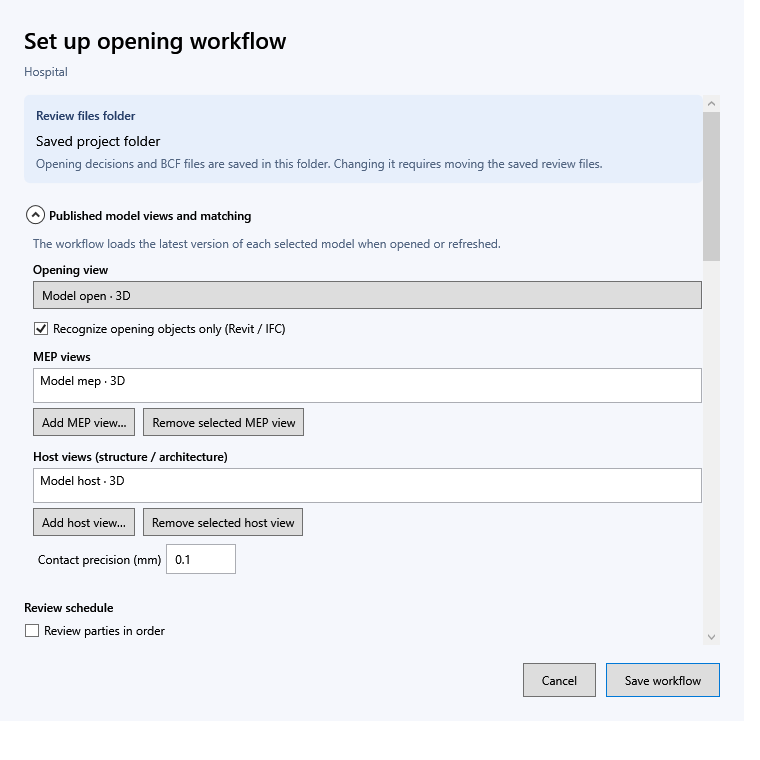
Workflow setup with sample project data.
Project data and access
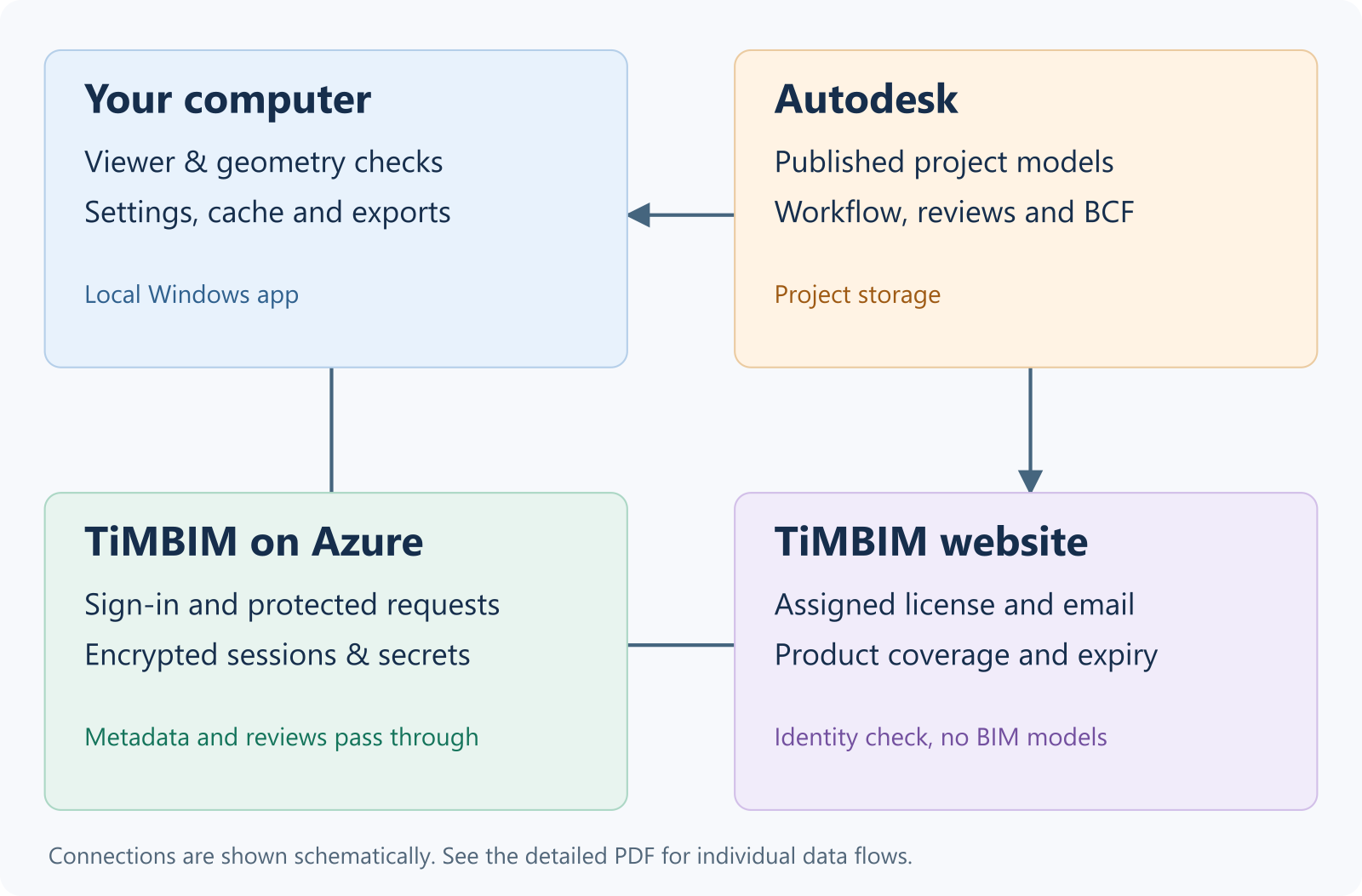
Model viewing, geometry checks, quantity calculations and PDF generation run on your computer. Published models stay in Autodesk. Forma stores the opening workflow, review decisions and generated BCF archive in the selected project folder. BoQ settings can be stored locally or in a shared folder you choose.
The hosted service verifies Autodesk sign-in and the assigned TiMBIM seat. Folder permissions are changed only when an authorized user confirms staged edits.
Licensing and installation
Connected tools require an active FormaTools seat assigned to your Autodesk email. FormaTools is included in TiMBIM All Access under the applicable plan. A named user can use their assigned seat, and company administrators can manage assignments through Team Management.
See Pricing & Licensing for current plans and evaluation options. To evaluate FormaTools, check the trial options and confirm that your evaluation includes an assigned FormaTools seat.
Download the signed Windows x64 MSI through your TiMBIM account. Install Microsoft Edge WebView2 Runtime if it is missing, then sign in from the app.