
TiMBIM IfcTools 0.2.0
IfcTools Help
Install IfcTools, set up an opening review, inspect IFC geometry and export the results.
Find help by topic
Installation and licensing
Openings
IFC Viewer
Navigate the model and move section planes.
Troubleshooting and support
Resolve common activation, matching and display issues.
Installation and first launch
- Get the current Windows x64 installer from IfcTools downloads or your organisation’s software administrator.
- Use the MSI if the computer already has the Microsoft Edge WebView2 Evergreen Runtime. The Setup EXE can install the runtime when missing and needs an internet connection for that step.
- Close any open IfcTools windows, run the installer and review the licence agreement. The app installs for the current Windows user and includes its .NET runtime.
- In the Start menu, search for TiMBIM IfcTools. Choose Open sample project to try the Mill Hall workspace.
Use Windows Installed apps to uninstall IfcTools. Existing workspaces, report settings and exports may remain in your Windows user profile.
Activate your licence
In Activate license in the desktop app, enter the email and licence key assigned to your IfcTools seat. Team administrators manage assignments through TiMBIM Team Management. Use that same email when assigning a participant to a shared workflow.
First activation requires internet access. If the service is temporarily unreachable, a previously approved seat can continue offline for up to seven days from its last successful validation, or until its expiry if sooner.
Start an opening review project
- For a team project, place the IFCs inside the selected shared folder or its subfolders. Use a mapped drive, a UNC path or a synchronised folder with files available locally. Everyone needs the appropriate Windows folder permissions.
- In Openings, choose Shared folder. If a workflow already exists, it opens. For a private review, use the project picker and choose New private project.
- In Workflow setup, link the IFCs and assign Opening model, MEP model and Host model roles. A combined IFC can serve all three. Federated IFC exports need consistent engineering coordinates.
- Set Review parties by email. Reviewers record decisions, Authors can check revised geometry, and Commenters add notes. The shared workflow owner manages the setup.
- Under Review rules, configure opening recognition, optional file-role filters, contact precision, deadlines and rejection guidance.
Review openings and revisions
Search or filter the opening register. Select a row or pick the opening in 3D to inspect its matches, properties and history. Choose Record response to approve, reject, record Pending or comment, depending on your role.
An opening needs one current approval from each Reviewer discipline. A rejection pauses review until the opening is revised. In ordered review, the next discipline’s deadline starts at handoff.
Choose Reload IFCs after the revised files are available locally. If a path changes, use Workflow setup → Replace. Keep the source IFC project GlobalId consistent. An opening envelope change can reopen the review while preserving earlier decisions. Check internal changes separately when the envelope stays the same.
Navigate and section IFC models
In IFC Viewer, open IFC files or inspect the current project’s models. Search the IFC tree and select an element to view its properties. Use Focus or Isolate to inspect it.
- Left-drag to orbit, right-drag to pan, and scroll over the model to zoom toward the pointer. Use Fit model to restore the full view.
- Under Section planes, choose Add plane. Drag its numbered handle in the 3D view, or select the plane and use its position slider.
- Each plane has an IFC X, Y or Z axis and a Flip side option. Enabled planes cut the model together. For a slice, add two planes on the same axis and flip one to retain the region between them.
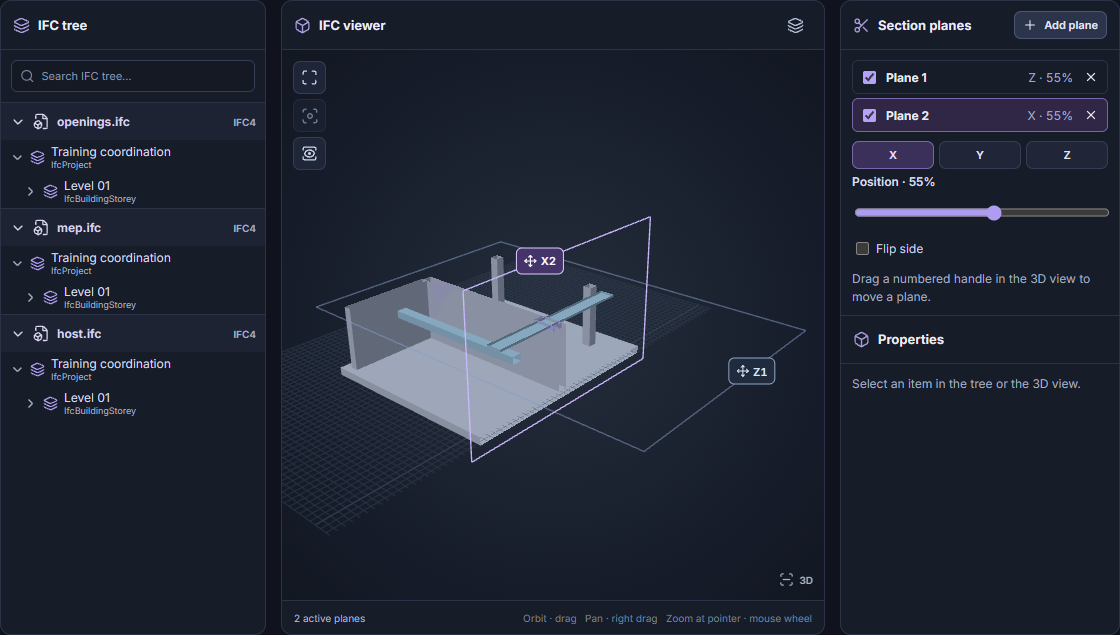
Use the grip in the viewport or select a plane in the sidebar to adjust its position.
Preview and export an opening report
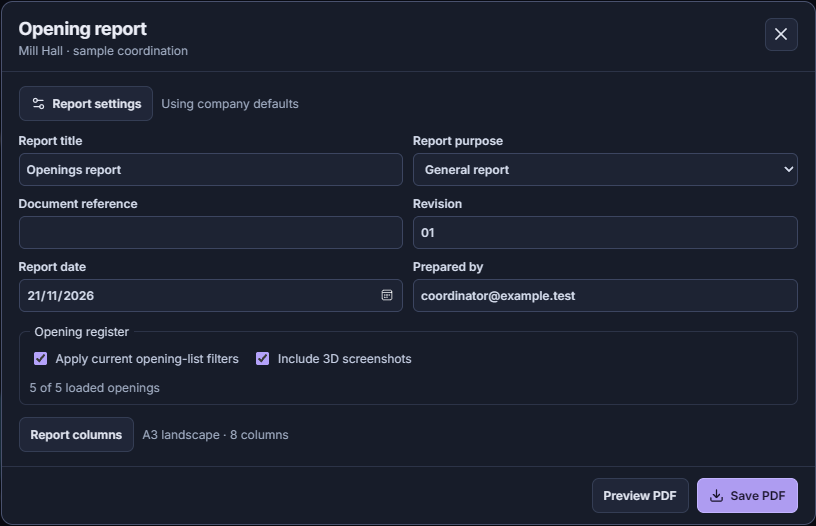
- In the opening register, choose Report. Set the title, date, document reference, revision and author.
- Use the current opening-list filters or include all loaded openings. Choose Report columns and whether to include 3D screenshots. The table selects A4 or A3 landscape based on the columns.
- Use Report settings for your logo, colours, cover, page headers and footers. Save company defaults or a project layout on this device. Import or export a report standard as JSON.
- Choose Preview PDF or Save PDF.
Use CSV for the opening register or BCF for BCF 2.1 exchange. A BCF topic requires a unique IFC GlobalId, and BCF snapshots are placeholders. Check opening links and results in the receiving application before relying on the exchange.
Troubleshooting and support
Licence not accepted
Check the assigned email and website key. If the app says the product is unknown, ask TiMBIM to check the IfcTools product mapping.
Openings are missing or match the wrong geometry
Check IFC model roles, opening recognition, any text filters, and whether all models use the same engineering coordinates.
The project is read-only or another model revision is pending
Check Windows folder permissions and your review assignment. Ask an assigned Author or Reviewer to reload the updated IFCs. If simultaneous edits conflict, ask the project owner or IT to reconcile the workflow.
The view is empty
Fit the model and check visibility, isolation and active section planes. If WebView2 is missing or WebGL is unavailable, ask IT to check the runtime and graphics acceleration.
Contact TiMBIM with the app version, the action you took and the exact error message. Omit your licence key and remove confidential model and participant information from screenshots.